
Get Started with ScreenTimerAI
You've received your license key! Follow these simple steps to download and activate your productivity tracker.
Download the App
Download ScreenTimerAI for macOS to get started.
Install & Launch
Install the downloaded app and launch it from your Applications folder.
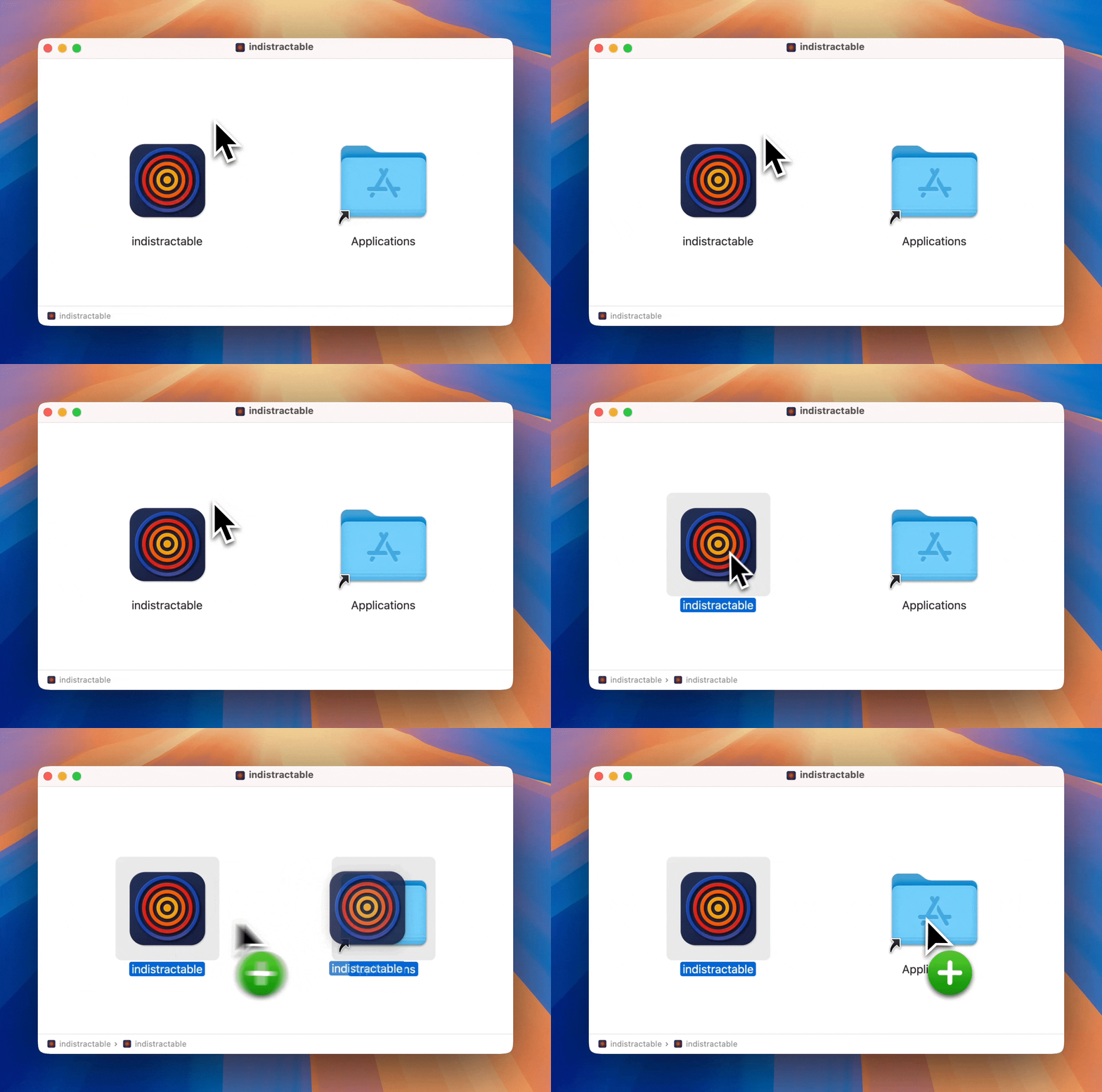
Open the downloaded file
Double-click the .dmg file
Drag to Applications
Move app to Applications folder
Launch the app
Find and open from Applications
Grant Required Permissions
Allow ScreenTimerAI to track your activities by granting the necessary permissions in macOS System Settings.
Open System Settings
Go to Apple menu → System Settings
Navigate to Privacy & Security
Click on Privacy & Security in sidebar
Enable Screen & System Audio Recording
Check the box next to ScreenTimerAI
Grant Accessibility permissions
Enable under Accessibility section
Important: These permissions are required for activity tracking. The app will prompt you when permissions are needed.
Enter Your License Key
Activate your app using the license key from your email.
Find your license email
Check inbox and spam folder
Copy the license key
Select and copy the full key
Paste in the app
Enter key in license dialog
Start Your Productivity Journey
You're all set! ScreenTimerAI will now track your activities and provide AI-powered insights.
Automatic activity tracking
Your apps and websites are being monitored
AI-powered categorization
Activities are automatically categorized
Productivity insights
View your productivity patterns and trends
Need Help?
If you can't find your license email or need assistance, please contact our support team. Don't have a license yet? Get a test license here.