What You Are Making
This setup creates a scheduled Claude Cowork task that reads yesterday's activity from ScreenTimerAI and uses AI to turn it into a short daily productivity report.
The result is simple: every morning you get a plain text summary in chat. No audio workflow. No extra APIs. No manual copy-paste.
Step 1: Connect ScreenTimerAI To Claude
There are three ways to set this up:
In Claude, open Settings, go to Developer, then look for Local MCP servers.
From there, click Edit Config and add ScreenTimerAI using these values:
"screentimerai-activities": {
  "command": "/Applications/ScreenTimerAI.app/Contents/MacOS/activity-mcp-server",
  "args": []
}
Final config file should look like this:
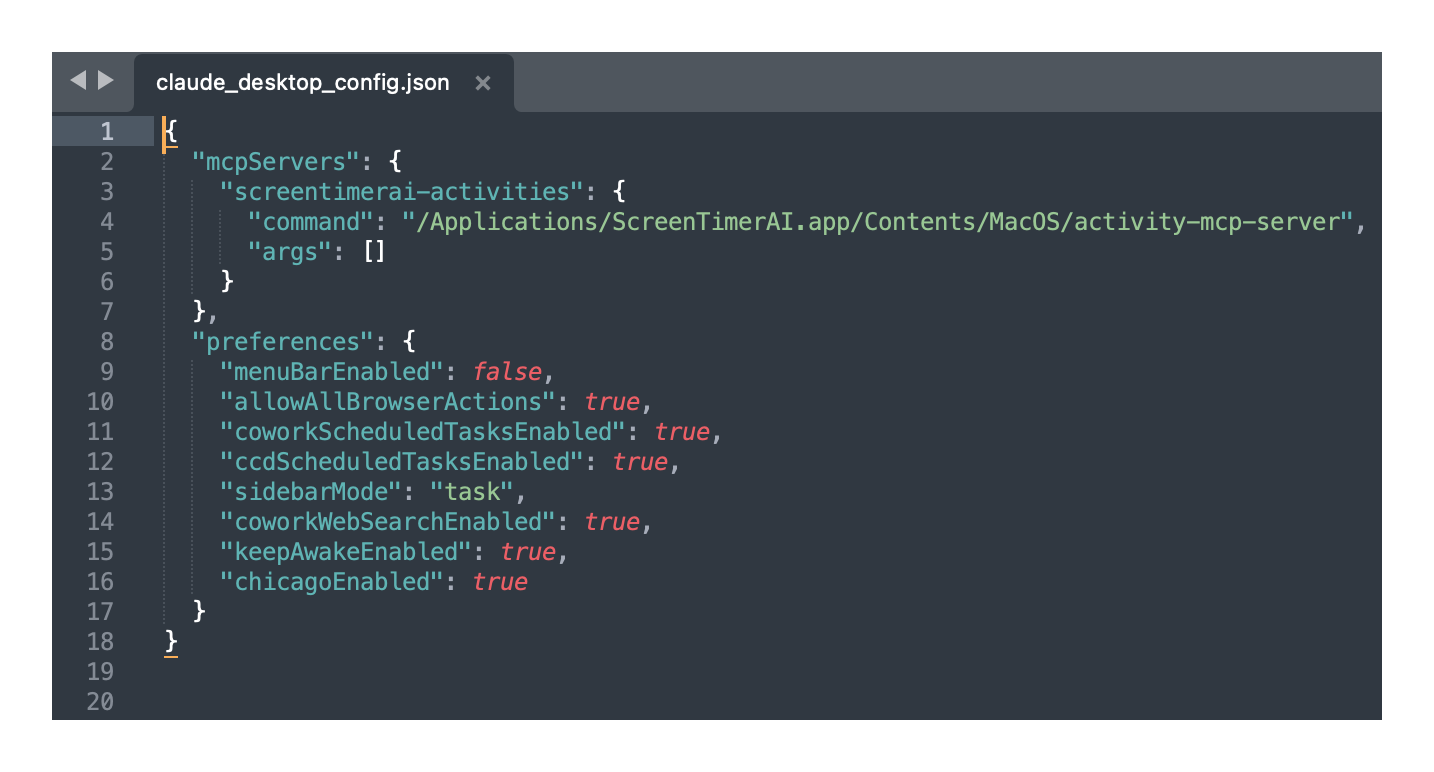
After editing the config, restart Claude.
If you want to test that Step 1 worked, try one of these prompts in Claude Chat:
| MCP function | Test prompt |
|---|---|
get_current_activity | What am I doing right now? |
get_activity_logs | Get my raw activity logs for yesterday. |
show_activity_timeline | Show me an activity timeline for yesterday. |
summarize_activity_range | Summarize my activity for yesterday. |
analyze_focus_segments | Analyze my focus segments for yesterday afternoon. |
show_focus_score_timeline | Show me a focus score timeline for today. |
show_focus_score_trends | Show me my focus score last week. |
Step 2: Create The Scheduled Task
Create a new scheduled daily task in Claude and use this prompt:
Generate a daily productivity text report based on yesterday's Screen Time AI data.

Follow these steps:

1. Fetch yesterday's activity data from Screen Time AI.
2. Write a short productivity report (~150 words) from the perspective of a dark, witty productivity coach reacting to the data.

Rules:
- Focus more on failures than successes
- Use short, punchy sentences
- Be dark and witty, commanding not polished
- Swearing is allowed sparingly for impact
- Return only the final report text, nothing else

Return the report as plain text directly in the chat.
You can keep the tone exactly as written above, or soften it if you want something more neutral.
Step 3: Run It Once Manually
Scheduled tasks need one manual run first so you can approve the MCP calls.
Trigger it with a message like this:
Run my daily productivity text report task now.
Claude will pause when ScreenTimerAI tool calls need approval. Allow them once, and future scheduled runs can happen automatically.
What Happens Next
After setup, Claude can generate your report automatically each day using your ScreenTimerAI activity data from the previous day.
That gives you a lightweight daily check-in you can scan in seconds and reuse in a journal, standup note, or end-of-day review.